Using IValueConverter

I was down in Las Vegas all of last week for the Autodesk Forge DevCon and Autodesk University: a full four days of learning about all of the up and coming Autodesk products and technologies and networking. Lots of fun, lots of new people to talk to. I had a chat with a somewhat new’sh dev and he was complaining about the difficulties of using XAML. We delved into a bit of MVVM and he wanted to know, in effect, how to bind visual properties.

From there we went to the use of value converters and all the potential they have for presentation without having to embed visual elements and other complex logic into your view model. And it is available across WPF, UWP and Xamarin Forms.

A Simple Case

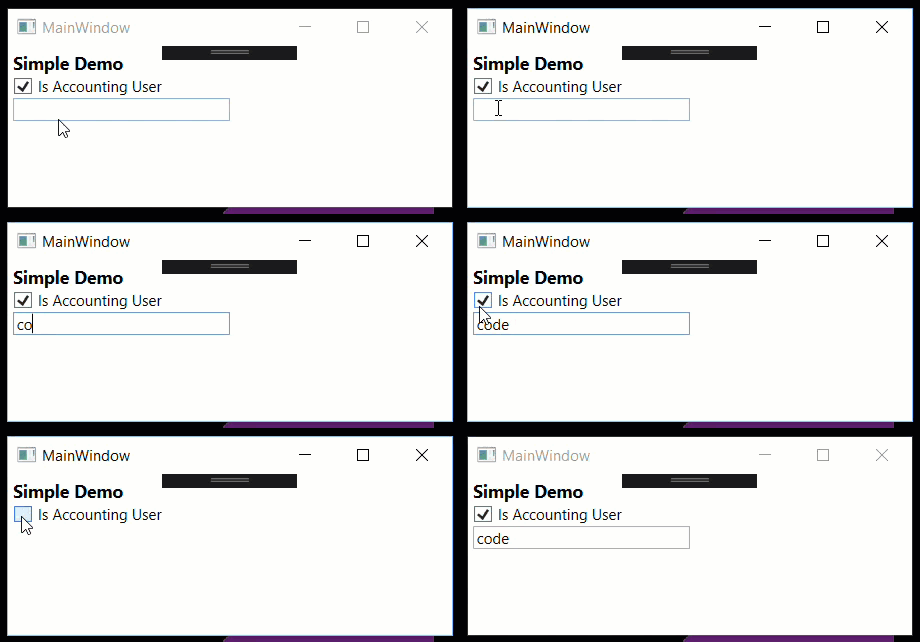
My first value converter was in WPF and making visual elements visible or not based on a value in my view model. Lets pretend we have some additional controls in our window that are only visible if the user is an accounting user. In our view model, it is a bool property named IsAccounting. If we try to bind the IsAccounting property to the control Visibility property, a binding error occurs that says the type of the value is incorrect for the target property: because of the error we won’t see the UI change.


<!-- fails -->
<TextBox Text="{Binding AccountCode}" Visibility="{Binding IsAccounting}" />

We need a value converter that will change the bool value to a Visibility value.


public class BoolToVisConverter : IValueConverter
{
    public object Convert(object value, Type targetType, object parameter, CultureInfo culture)
    {
        bool v = (bool) value;
        return v ? Visibility.Visible : Visibility.Collapsed;
    }

    public object ConvertBack(object value, Type targetType, object parameter, CultureInfo culture)
    {
        throw new NotImplementedException();
    }
}

To use it, make sure that you have the namespace that the value converter resides in declared in your Window XAML and then the converter itself referenced in the resource dictionary:

xmlns:local="clr-namespace:Demo"
<Window.Resources>
    <ResourceDictionary>
        <local:BoolToVisConverter x:Key="boolVisConverter" />
    </ResourceDictionary>
</Window.Resources>

Finally you add the converter to the binding expression of the control:


<TextBox Text={Binding SecretAccountCode} Visibility={Binding IsAccounting,Converter={StaticResource boolVisConverter}}" />

And the application looks like this:
2017-11-19boolvisconverter

I like this because it keeps the app logic free of the presentation code, and this makes your view model simpler, testable and portable.

Something More Powerful

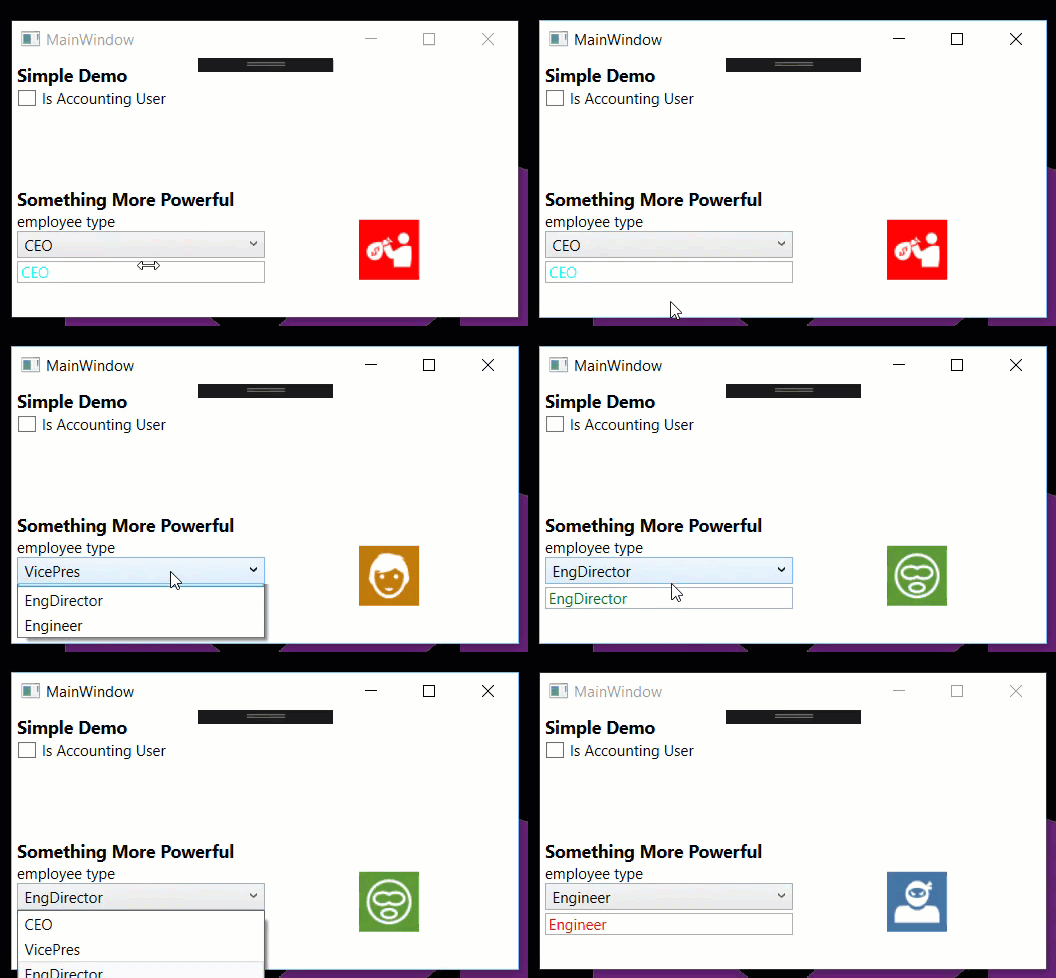
Let’s take a look at where the IValueConverter can really help. In this example we will change the color of the text in a textbox based and an image based on the selected item in a combo box. I setup an enum with some employee types:

public enum EmployeeTypeEnum
{
	CEO,
	VicePres,
	EngDirector,
	Engineer,
}

and added EmployeeTypes and SelectedEmployeeType properties to the view model.


/// initialize this collection in the constructor with the enum values.
public ObservableCollection<EmployeeTypeEnum> EmployeeTypes { get; private set; } =
    new ObservableCollection<EmployeeTypeEnum>();

private EmployeeTypeEnum _selectedEmployeeType = EmployeeTypeEnum.CEO;
public EmployeeTypeEnum SelectedEmployeeType
{
    get => _selectedEmployeeType;
    set => SetProperty<EmployeeTypeEnum>(ref _selectedEmployeeType, value);
}

Here are our value converters, one of them will convert the SelectedEmployeeType value to a foreground color and the other will convert the SelectedEmployeeType value to an image.

public class EmployeeColorConverter : IValueConverter
{
    public object Convert(object value, Type targetType, object parameter, CultureInfo culture)
    {
        EmployeeTypeEnum empType = (EmployeeTypeEnum) value;
        switch(empType)
        {
            case EmployeeTypeEnum.CEO:
                return Brushes.Aqua;
            case EmployeeTypeEnum.EngDirector:
                return Brushes.Green;
            case EmployeeTypeEnum.Engineer:
                return Brushes.Red;
            case EmployeeTypeEnum.VicePres:
                return Brushes.Blue;
            default:
                return Brushes.Black;
        }
    }

    public object ConvertBack(object value, Type targetType, object parameter, CultureInfo culture)
    {
        throw new NotImplementedException();
    }
}

public class EmployeeImageConverter : IValueConverter
{
    public object Convert(object value, Type targetType, object parameter, CultureInfo culture)
    {
        EmployeeTypeEnum empType = (EmployeeTypeEnum) value;
        switch (empType)
        {
            case EmployeeTypeEnum.CEO:
                return new Uri("/ceo.png", UriKind.Relative);
            case EmployeeTypeEnum.EngDirector:
                return new Uri("/director.png", UriKind.Relative);
            case EmployeeTypeEnum.Engineer:
                return new Uri("/engineer.png", UriKind.Relative);
            case EmployeeTypeEnum.VicePres:
                return new Uri("/vicepres.png", UriKind.Relative);
	    default:
	        return null;
        }
    }

    public object ConvertBack(object value, Type targetType, object parameter, CultureInfo culture)
    {
        throw new NotImplementedException();
    }
}

Add our converters to the resource dictionary:

<local:EmployeeColorConverter x:Key="empColorConverter" />
<local:EmployeeImageConverter x:Key="empImageConverter" />

The markup for our XAML looks like this


<ComboBox ItemsSource="{Binding EmployeeTypes}" SelectedItem="{Binding SelectedEmployeeType}" />
<TextBox Text="{Binding SelectedEmployeeType}" Foreground="{Binding SelectedEmployeeType,Converter={StaticResource empColorConverter}}" Margin="0,2" />

<Image Width="48" Height="48" Margin="4" Source="{Binding SelectedEmployeeType,Converter={StaticResource empImageConverter}}" />

And that is it. We have a simple and portable view model that can be used on other platforms.
2017-11-19_6-35-24

Feel free to check out the sample code in GitHub.

I also would like to give a shout-out to SyncFusion as I used their free MetroStudio icon generator to build my icons.

Platform Services: Part 2

Hello from Las Vegas! I am down in Las Vegas for the Autodesk Forge DevCon and Autodesk University. A total of four days of an absolute fire hose of information and learning! I have a few minutes of downtime and I wanted to provide an update on the new direction of consuming platform specific services in your portable project.

In my original post, I showed you how Prism would use the Xamarin Forms built in dependency service to resolve an object if it couldn’t find it in the container that Prism uses. That was the accepted practice for version 6.3 and earlier, but now, in the upcoming 7.0 release, the authors have specified that all object resolution should be done via the Prism container.

Fortunately it is pretty easy.

In Prism, there is an interface that you implement for each of your platforms: IPlatformInitializer where T is your Prism container. I typically use Unity, so my implementation would look something like this:

public class AndroidInitializer : IPlatformInitializer<IUnityContainer>
{
    public void RegisterTypes(IUnityContainer container)
    {
        container.RegisterType<IPortableInterface, DroidImplementation>();
        // other registrations
    }
}

Now you just need to pass that implementation into the LoadApplication call in the platform specific app initialization. Continuing with Android, it looks like the following:


[Activity(Label="projectname" ...)]
public class MainActivity : global::Xamarin.Forms.Platform.Android.FormsApplicationActivity
{
    protected override void OnCreate(Bundle bundle)
    {
        base.OnCreate(bundle);
        global::Xamarin.Forms.Forms.Init(this, bundle);
        LoadApplication(new App(new AndroidInitializer()));
    }
}

From there, it goes into your App object that is derived from your selected container specific PrisApplication class. The constructor takes one parameter of IPlatformInitializer which you just move along to the base constructor.


public class App : PrismApplication
{
    public App(IPlatformInitializer initializer = null)
        : base(initializer)
    {
    }

    /// ... rest of your implementation
}

And there you go: all of your registrations controlled directly within Prism for a one stop shop for managing them.

I will add one small caveat to the information above. I wrote most of this from memory while sitting in a hallway at the Sands Convention Center. Prism is going through a number of changes from 6.3 to 7 and I might have mis-spelled a class name. But I think it should stand up fairly well.

Xamarin Forms, Autodesk Forge Access Token

In the previous posts, we went through each platform, looking at how we implement deep linking for each of the platforms. At the end of the deep link flow, we have arrived back within our portable Application object with a URL to process. This URL has a response code at the end that we have to parse out and send back to Forge to get our access and refresh tokens.

This is pretty easy, something like this works:


private string GetResponseCodeFromUrl(string redirectUrl)
{
    string codeParameter = "?code=";
    int pos = redirectUrl.IndexOf(codeParameter);
    string code = redirectUrl.Substring(pos + codeParameter.Length);
    return code;
}

After that we post a REST call to “https://developer.api.autodesk.com/authentication/v1/gettoken&#8221;. Inside of the content of the post call, we need to add a string with all of our app keys and codes, in a similar fashion to how we started off the whole authentication process in the first post of the series. The string content looks like this and should be all on one line.

var content = new StringContent($"client_id={ClientId}&client_secret={ClientSecret}&grant_type=authorization_code&code={ResponseCode}&redirect_uri={CallbackUrl}");

See the above link for an explanation of the ClientId, ClientSecret and redirect_uri. The ReponseCode is simply the code that we retrieved using the above GetResponseCodeFromUrl function above.


private AuthData AuthorizationData { get; set; }

public async Task<bool> GetAccessTokenAsync(string redirectUrl)
{
    ResponseCode = GetResponseCodeFromUrl(redirectUrl);
    using (HttpClient client = new HttpClient())
    {
        client.DefaultRequestHeaders.Clear();
        using (HttpRequestMessage request = new HttpRequestMessage(HttpMethod.Post, "https://developer.api.autodesk.com/authentication/v1/gettoken"))
        {
            request.Content = new StringContent($"client_id={ClientId}&client_secret={ClientSecret}&grant_type=authorization_code&code={ResponseCode}&redirect_uri={CallbackUrl}");
            request.Content.Headers.ContentType = 
                new MediaTypeHeaderValue("application/x-www-form-urlencoded");
            using (HttpResponseMessage response = await client.SendAsync(request))
            {
                string data = await response.Content.ReadAsStringAsync();
                if (response.IsSuccessStatusCode)
                {
                    AuthorizationData = Deserialize<AuthData>(data);
                    return true;
                }
            }
        }
    }

    return false;
}

If all goes well, we end up getting a response with our authorization data. That structure looks like this:

public class AuthData
{
    [JsonProperty("token_type")]
    public string TokenType { get; set; }

    [JsonProperty("expires_in")]
    public int ExpiresInMinutes { get; set; }

    [JsonProperty("refresh_token")]
    public string RefreshToken { get; set; }

    [JsonProperty("access_token")]
    public string AccessToken { get; set; }

    public DateTime DateGranted { get; set; }

    public AuthData()
    {
        DateGranted = DateTime.Now;
    }
}

I am using Json.NET as my deserializer and am using the attributes to redirect the parsed data into the properties that I want. I think pretty much everyone uses Json.NET, but if it is the first you have heard about it, it is definitely worth your time to look at. Important properties above are:

  • AccessToken: use this for all of your Forge requests so that Forge knows you are authenticated.
  • RefreshToken: the access token will expire. You use the refresh token to request a new one without forcing the user to re-authenticate.
  • ExpiresIn: how many minutes before the access token expires.
  • DateGranted: not returned by Forge, but sets when the token was granted so that we can compute when it expires.
  • And that is about it! In the next post, we will look at refreshing the access token.

Xamarin Forms UWP Deep-Linking

Introduction

In our last post, we looked at what we needed to do to setup our shared/portable project to authenticate with Autodesk Forge. Almost all of the code the important code is in the shared area, but we do have to do somethings within each of the platform projects. Lets check out UWP.

Protocol Declaration

The first thing that I do is go into the Package.appxmanifest in the UWP project. Once you are in it, click on the “Declarations” tab. On this tab, you can declare lots of different things for your app: able to pick files, camera settings, background tasks among others. The one we are interested in is protocol.

Select protocol and add it to the list of the supported declarations. Give the protocol a name check “ExecutableOrStartPageIsRequired”. For the name, make sure that you give it something unique. Perhaps an abbreviation of your company followed by some kind of app designation.

packageappxmanifest

Override UWP Application.OnActivated

In the UWP platform project, you need to override the Application.OnActivated function to handle the deep-link. Normally Xamarin Forms will just route the URI request to OnAppLinkRequestReceived, but it doesn’t seem to be working for UWP (or iOS). So what we will do, is just call in to a new entry point which then delegates to the protected function.


/// UWP application object
sealed partial class App : Application
{
    // ... other stuff here

    protected override async void OnActivated(IActivatedEventArgs args)
    {
        base.OnActivated(args);

        if (args.Kind == ActivationKind.Protocol)
        {
            var protocolArgs = args as ProtocolActivatedEventArgs;
            DeepLink.App thisApp =
                (DeepLink.App) Prism.Unity.PrismApplication.Current;
            thisApp.UwpIOSOnAppLinkRequestReceived(protocolArgs.Uri);
        }
    }
}

Then we can go back to the application object in our portable library and fix up the OnAppLinkRequestReceived function and the manual entry point we show above that is used for UWP and iOS.


public partial class App : PrismApplication
{
    /// the rest of the class is up here ...

    protected override async void OnAppLinkRequestReceived(Uri uri)
    {
        base.OnAppLinkRequestReceived(uri);
        bool retrievedToken = await GetAccessTokenAsync(uri.ToString());
        if (retrievedToken)
            await NavigationService.NavigateAsync(Pages.Test);
    }

    public void UwpIOSOnAppLinkRequestReceived(Uri uri)
    {
        OnAppLinkRequestReceived(uri);
    }

}

All that is happening above is that when the app is activated because of the protocol that it has registered, it will look at the URL and extract the response code that was returned by Forge. It will then use that response code in a REST API call to get the authorization token and refresh token. If that is successful, we perform a navigation to the next page in our app. Obviously the code isn’t complete as it doesn’t handle any kinds of errors. For the details on how to get the authorization and refresh tokens see the previous post.

And that is it for UWP, just a little bit of code and we are back in our shared code base. Up next will be iOS.