Custom Map Renderer on Android: Getting Started

I am going to do a small series of posts on Xamarin Forms custom map renderers. Xamarin Forms comes with a stock Map control that you can add to your page, and it works pretty well if you are ok with just using the stock map pins. But if you want to do something a little bit different, or you want some kind of interaction, you will need to build up a custom renderer for each platform.

In this post, we will talk about getting started with your custom renderer on Android. You will need to use nuget to add the Xamarin.Forms.Maps package to your projects. Remember, you will also need to request an API key from Google to use Google Maps. To do that, follow these instructions. Once you have your key, you will need to add it to the AndroidManifest.xml file and and declare your app capabilities. For this, follow these instructions. Don’t forget to add in the Maps initializations to the MainActivity file on your droid project.

[Activity(
Label = "Dev Days Speakers",
Icon = "@drawable/icon",
Theme = "@style/MainTheme",
MainLauncher = true,
ConfigurationChanges = ConfigChanges.ScreenSize | ConfigChanges.Orientation)]
public class MainActivity
: global::Xamarin.Forms.Platform.Android.FormsAppCompatActivity
{
    protected override void OnCreate(Bundle bundle)
    {
        TabLayoutResource = Resource.Layout.Tabbar;
        ToolbarResource = Resource.Layout.Toolbar;

        base.OnCreate(bundle);
        Microsoft.WindowsAzure.MobileServices.CurrentPlatform.Init();

        global::Xamarin.Forms.Forms.Init(this, bundle);
        Xamarin.FormsMaps.Init(this, bundle);

        LoadApplication(new App());
    }
}

At this point, we should be able to add in the Map control to our Page as follows:

<?xml version="1.0" encoding="utf-8" ?>
<ContentPage
	xmlns="http://xamarin.com/schemas/2014/forms"
	xmlns:x="http://schemas.microsoft.com/winfx/2009/xaml"
	xmlns:prism="clr-namespace:Prism.Mvvm;assembly=Prism.Forms"
	prism:ViewModelLocator.AutowireViewModel="True"
	xmlns:maps="clr-namespace:Xamarin.Forms.Maps;assembly=Xamarin.Forms.Maps"
	Title="Map"
	x:Class="DevDaysSpeakers.View.MapPage">

	<Grid>
		<maps:Map IsShowingUser="True" MapType="Street" />
	</Grid>

</ContentPage>

Let’s not forget, our app is using the Prism framework, so we need to add our new page to the navigation stack. Let’s head over to the App class and add in our new page:

protected override void RegisterTypes()
{
    // ... other registrations were here

    // our page registrations
    Container.RegisterTypeForNavigation<View.SpeakersPage,ViewModel.SpeakersViewModel>(PageKeys.Speakers);
    Container.RegisterTypeForNavigation<View.DetailsPage, ViewModel.DetailsViewModel>(PageKeys.Details);
    Container.RegisterTypeForNavigation<View.MapPage, ViewModel.MapViewModel>(PageKeys.Map);
}

To get to this page, I cheated and added a “Map” button to the SpeakersPage which will navigate over to the Map page. In the ContentPage constructor, I also set the map view region to a specific area.

If you run the app now, tapping the map button should navigate you over to the new MapPage and display a google map. If for some reason the app is crashing when starting up, try cleaning your solution and rebuilding it.

At this point, we now have standard Xamarin Forms map being displayed in our app. Next we will look at changing the look of the pins.

I should have some code up in GitHub soon, I would just like to get a bit closer to finish the final posts in the series before posting everything.

Xamarin Dev Days Lab – Prism Step 4

Well, hello from Las Vegas! I am down in LV for the Autodesk Developer Network Dev Days and the Autodesk University. It’s a pretty fun time, especially if you are involved in engineering or CAD of any kind. If you are like me, also a dev person, there is lots of cloud stuff to add in there. And now even virtual reality and augmented reality to geek out!

In any event, travel makes for weird schedules and time awake. So here I am working on navigation in Xamarin Forms projects. But first a little recap: in our last post we really dug into dependency injection and showed the power of it. We saw some concrete examples of how it can make our app better architected, and how that makes it more maintainable. Next we will take that architecture to the next level and add in navigation. You probably remember from the start of the app how we had to register pages for navigation: let’s review that.

In a normal Xamarin app, the navigation system is accessed via a singleton object. To navigate to another page , you have to provide the actual page type of the destination page to the navigation service. Right away, you can see that this could be a headache in the future: if you change the page type, you need to change it everywhere in your app that the page is referenced. Yuck. And what if you have needs that are a bit more dynamic? For example, you could have a free version of an app and a paid version. In that case your dependencies just increased by a factor of …? Well, it depends on the app, but every time you have to make that decision in your app is another level of complexity. Instead, wouldn’t it be cool if you could just determine if the app was paid or not and navigate to the appropriate page based on that status?

Prism provides a better model for navigation. Not only does Prism remove the dependency on types, it also moves the navigation brains up to the view model (where the business logic is) and away from the presentation level (where the Xamarin navigation system resides). And this all begins in the RegisterTypes method of the App object. So let’s start with what we have there.


/// first we have the register types
protected override void RegisterTypes()
{
    // non nav registration here
    Container.RegisterTypeForNavigation
        <View.SpeakersPage, ViewModel.SpeakersViewModel>();
}

/// and our initial navigation
protected override void OnInitialize()
{
    NavigationService.NavigateAsync("SpeakersPage");
}

The above registers the SpeakersPagae for navigation and associates it with the SpeakersViewModel. There is also an optional parameter in the call to associate the registration with a key. Since we didn’t provide a key, Prism made one for us based on the name of the page. When you call NavigateAsync, you provide the key and the Prism navigation system looks up what is associated with the key and instantiates the appropriate page and view model.
We can improve this by specifying our own key. If we do that, in every place we navigate to the page, simply changing the initial registration will allow us to put in a different page. We won’t have to go to every place and change the call. I like to create a static class with the page keys so that I can reduce my use of magic strings.

public static class PageKeys
{
    public const string Speakers = "speakers";
    public const string Details = "details";
}

And now we can update the two functions above:


protected override void RegisterTypes()
{
    // non nav stuff here

    Container.RegisterTypeForNavigation
        <View.SpeakersPage, ViewModel.SpeakersViewModel>
        (PageKeys.Speakers);
}

protected override void OnInitialize()
{
    NavigationService.NavigateAsync(PageKeys.Speakers);
}

 
So that is looking pretty cool. Let’s pretend there is a paid and free version of the app and adjust our registration:

protected override void RegisterTypes()
{
   if (IsPaidApp)
   {
        Container.RegisterTypeForNavigation
          <View.SpeakersExPage, ViewModel.SpeakersExViewModel>
          (PageKeys.Speakers);
   }
   else
   {
       Container.RegisterTypeForNavigation
         <View.SpeakersPage, ViewModel.SpeakersViewModel>
         (PageKeys.Speakers);
   }
}

Awesome! Just by using the key instead of the page type name, we made our app even more flexible and easier to maintain. None of our in app navigation will change, we always just call:


NavigationService.NavigateAsync(PageKeys.Speakers);

What else is important in this? Well I mentioned this before, but the navigation system is rooted into the presentation layer of the code. But navigation is really about business logic. The Prism navigation service abstracts out the presentation and the service is passed around as an interface. For unit testing of your view model, you can mock the interface and your view model won’t know or care.

You probably already know how the view model gets the navigation service (dependency injection, constructor parameter), but just in case it is late or you don’t remember every single detail of the previous posts, we just put the dependency into the constructor and the dependency injection container injects it for us. You can see this in the code. If you are looking at the code and saying: wait, INavigationService is not registered anywhere in your code, you are right. The App base class does it for us because they assumed that you were going to want that service. Dig into the Prism code if you want to find out more.

The last thing I want to bring up with respect to Prism navigation is how to pass data during navigation. When you use the NavigationService.NavigateAsync method, the second parameter is a NavigationParameters object, and you can pass pretty much anything in in. Let’s dive in.

In this example, I want to know when the SpeakersPage is navigated to the first time. So in the app object, I am going to add that parameter to the initial navigation in the OnInitialize method.


protected override void OnInitialize()
{
    var nps = new NavigationParameters();
    nps.Add("first", true);
    NavigationService.NavigateAsync(PageKeys.Speakers, nps);
}

How do we consume this data? And where do we consume it? This data is really business logic data so we want to consume it in the view model. To get the data up to the view model we have to have our view model implement the INavigationAware interface. This interface has two methods: OnNavigatedFrom and OnNavigatedTo. I normally like to implement this in the BaseViewModel class so that all the view models have it already and I can also setup some generic functionality if I want.

public class BaseViewModel : BindableBase, INavigationAware
{
    /// ... other base stuff goes here

    public virtual void OnNavigatedFrom(
        NavigationParameters nps)
    {
    }

    public virtual void OnNavigatedTo(
        NavigationParameters nps)
    {
    }
}

So now in my SpeakersViewModel, I will override the OnNavigatedTo method to implement looking for first run:

public class SpeakersViewModel : BaseViewModel
{
    /// ... existing stuff here

    public override void OnNavigatedTo(
        NavigationParameters nps)
    {
        base.OnNavigatedTo(nps);

        if (nps == null || !nps.ContainsKey("first"))
            return;

        bool firstLoad = (bool) nps["first"];
        if (firstLoad)
        {
            /// do first functionality here
        }
        else
        {
            /// do something else
        }
    }
}

But how does that actually work? What happens is that the navigation service is aware of the page creation. And as part of the page creation, we know that the view model will be automatically injected. The navigation service will look at the view model object that was injected and see if it implements the INavigationAware interface. If it does, it will call the OnNavigatedTo method. More awesomeness!

Well, that is it for navigation. You can see full-on code at the usual place in my GitHub repo under Step 04.
Enjoy!

Xamarin Dev Days Lab – Prism Step 3

Introduction

In our last post, we set up the view model for the SpeakersPage and made use of the built in view model functionality included in Prism. We setup a base view model for our app to contain common functionality. The SpeakersViewModel class has the implementation code for retrieving the list of speakers embedded in the view model itself. Fine for a demo, but in a real app, we would be better served by moving this functionality out and using it via an interface. By implementing the functionality as an interface, we will be able to reuse the code in other view models. Since the SpeakersPageViewModel only knows it via the interface, we will also be able to mock the service with known values for use in unit tests, without changing the view model. And we can use the Prism framework and the dependency injection that is built in to make this easier. So lets take a look at this.

The Interface

The first thing we want to do is look at the functionality that is currently in our view model class. All it is doing is calling a web api to return a list of speakers. That seems pretty straight forward. Let’s start our interface with that:


public interface ISpeakersService
{
    Task<List<Speaker> GetAllSpeakersAsync();
}

Implementing will be easy: we already have all the code that we need in the view model from the demo app:


public class SpeakersService : ISpeakersService
{
    public async Task<List<Speaker>> GetAllSpeakersAsync()
    {
        using (var client = new HttpClient())
        {
            //grab json from server
            var json = await client.GetStringAsync(
                "http://demo4404797.mockable.io/speakers");

             //Deserialize json
             var items =
                JsonConvert.DeserializeObject<List<Speaker>>(json);
             return items;
        }
    }
}

//

From above, you can see that we have just moved all of the implementation code from the view model into a separate service object. So how do we start using this new code in our SpeakersViewModel?
The first thing we need to do is register this service in our App object. Remember that we are registering via an interface: this means we can change out the implementation at any time.
Here is the RegisterTypes function in the App object updated to register the service:


protected override void RegisterTypes()
{
    Container.RegisterType
        <Services.ISpeakersService, Services.SpeakersService>();
    Container.RegisterTypeForNavigation
        <View.SpeakersPage, ViewModel.SpeakersViewModel>();
}

Next we need to refactor the SpeakersViewModel: we will add the interface to the view model constructor and change the GetSpeakersAsync to call the interface to retrieve the speakers data:


public class SpeakersViewModel : BaseViewModel
{
    private Services.ISpeakersService _speakersService = null;

    public SpeakersViewModel(Services.ISpeakersService speakersService)
        : base()
    {
        _speakersService = speakersService;
    }

    /// other parts of the view model go here
    /// now lets look at GetSpeakers ...
    private async Task GetSpeakers()
    {
        if (IsBusy)
            return;

        Exception error = null;
        try
        {
            IsBusy = true;

            var items =
                await _speakersService.GetAllSpeakersAsync();
            Speakers.Clear();

            foreach (var item in items)
                Speakers.Add(item);
        }
        catch (Exception ex)
        {
            error = ex;
        }
        finally
        {
            IsBusy = false;
        }

        if (error != null)
            await Application.Current.MainPage.DisplayAlert(
                "Error!",
                error.Message,
                "OK");
    }

}

So what do we have above? All of a sudden the ViewModel has a dependency on ISpeakersService. But we weren’t creating the view model in the first place: instead, Prism and the AutoWireViewModel attached property (see the previous blog post) are creating the view model for us and attaching it to the page. When Prism does this, it uses the container that was selected (step 01 blog) to create the view model and all the dependencies that are required for the view model, and it does this via reflection and then looking at what you specified in the App.RegisterTypes method. I hope that you can see that you can change up the implementation details of the interface without ever affecting the view model itself. You can even unit test your view model by mocking the service.

Now the view model just makes a call to retrieve the speakers. It has no idea if the speaker are read from a web api, a database, a file or even from memory! It just knows to make the call and it will get the data.

I really want to emphasize this: the view model knows nothing. It has no dependency on any implementation and you can change that around as you see fit! In fact, I am going to change the code of the SpeakersService implementation. I captured the json payload that was returned from the web api and saved it as a constant in the implementation. Now instead of calling out to the web api, I just return the json payload directly, and now for testing, everything is much quicker. And as mentioned earlier, using these known values, I can use this implementation for unit testing of the view model.


public class SpeakersService : ISpeakersService
{
    /// you can see this actual string value in the GitHub repo
    /// under step 03
    private const string JsonResponse =
        "...json response string captured from web api";

    public async Task<List<Speaker>> GetAllSpeakersAsync()
    {
        var items =
            JsonConvert.DeserializeObject<List<Speaker>>(JsonResponse);
        return items;
    }
}

Recap

We have taken the next step in making the dev days app a little more production worthy. We took out the implementation of our speakers service away from the view model, defined it as an interface and injected that into our view model. We used the dependency injection that is built into Prism to inject the implementation of the service into the view model. And then for fun (and quicker testing), we changed the implementation of the interface to serve up the results from a json payload that had been captured previously. Now we can do testing much quicker.

All of this code can be found in the Step03 portion of the repository. Make sure you check out the two different implementations of ISpeakersService contained in the SpeakersService.cs file and how they could be registered in App.cs.

The next step will be to add navigation to the app so we can see the details of a selected speaker.

Xamarin Dev Days Lab – Prism Step 2

This is a continuation from the first post. You can find all of the code in my GitHub repository under step 2.

Viewmodels

I think most of us know what a viewmodel is and have an understanding of the MVVM pattern. If you don’t know, or need a refresher, there will probably be enough information in here for you to search around on.

The starter app already has one view model in it called SpeakersViewModel. You will remember it as the class that implements INotifyPropertyChanged. This interface is what tells the data binding system to update the UI, and when the UI changes, to update the property in the view model. Every view model needs to implement this interface, so right away, I hope you can see that we would like to move that functionality into a base class so as not to keep redoing it. And, as you might guess, Prism already has such a base class! I still like to make my own base class though, and include any app specific properties that I use a lot.

Below is a snippet of the SpeakersViewModel showing the implementation of INotifyPropertyChanged and how to use it from within the view model itself.


public class SpeakersViewModel : INotifyPropertyChanged
{
    public event PropertyChangedEventHandler PropertyChanged;

    private void OnPropertyChanged([CallerMemberName] string name = null) =>
        PropertyChanged?.Invoke(
            this,
            new PropertyChangedEventArgs(name));

    private bool _isBusy = false;
    public bool IsBusy
    {
        get { return _isBusy; }
        set
        {
            _isBusy = value;
            OnPropertyChanged();
        }
    }

    /// other properties go here
}

Let’s refactor the above view model to use the Prism helpers. First we will make our own app specific viewmodel base and derive from the Prism MVVM base class. Just for fun we will put the IsBusy property into the base class just to show the property in action.


public class BaseViewModel : BindableBase
{
    BaseViewModel()
        : base()
    {
    }

    private bool _isBusy = false;
    public bool IsBusy
    {
        get { return _isBusy; }
        set { SetProperty<bool>(ref _isBusy, value); }
    }
}

public class SpeakersViewModel : BaseViewModel
{
    SpeakersViewModel()
        : base()
    {
    }

    /// put other speakers functionality here
}

I think the above is pretty straight forward. We created a base class to hold common functionality and then redid our view model. We are still deriving from INotifyPropertyChanged (via BindableBase), and we still have the IsBusy property. If you go to the code in Step02 you can see the class in its entirety.
This brings us to our next problem: how do we get the view model instantiated in the class? In the case of the dev days sample app, it is being “newed-up” in the Page code-behind and being set manually. This is fine for very simple view models, but if we need services added to the view model, we are going to find it a bit more painful.

In the Prism world, you would let Prism take care of instantiating the view model for you, and by registering your services in the Container (see the App class), they will be added to the view model automatically. The way Prism manages this is by using an attached property. If the property is set to true, it will use a naming convention to find the view model type. Instead of using the “new” operator directly, it will use the UnityContainer to create it for you. The UnityContainer will determine (via reflection) if the view model depends on any services, and if so, inject those services into the view model for you. Once it has been created, it will attach it to the BindingContext of the page. What does this look like?

<?xml version="1.0" encoding="utf-8" ?>
<ContentPage
xmlns="http://xamarin.com/schemas/2014/forms"
xmlns:x="http://schemas.microsoft.com/winfx/2009/xaml"
xmlns:prism="clr-namespace:Prism.Mvvm;assembly=Prism.Forms"
prism:ViewModelLocator.AutowireViewModel="True"
x:Class="DevDaysSpeakers.View.SpeakersPage"
Title="Speakers">

</ContentPage>

The important line is the one containing AutowireViewModel=”True”. First we need to setup the namespace so that we can attach the AutowireViewModel property to the page. If that value is true, the logic behind the property will use naming conventions to find the view model class and then create it and bind it. The default conventions is that all pages are stored in the “Views” folder and the view models are stored in the “ViewModels” folder. The full name of the view model will be the name of the page with “ViewModel” appended. In the above example, Views.SpeakersPage will become ViewModels.SpeakersPageViewModel.

We also need to remove the view model and binding that we did in the page code-behind. In the SpeakersPage constructor, remove everything except for the constructor. It should now look like this:


public partial class SpeakersPage : ContentPage
{
    public SpeakersPage()
    {
        InitializeComponent();
    }
}

If you were paying really close attention, you would notice that in our dev days app, we are actually using the “View” and “ViewModel” folder, so we are probably going to have to override the default functionality. There are two ways to do this: first is to override the default view model resolver function. This is a bit more involved, and I am going to look at this functionality in another blog post. The other method is to specify the view model type when you register the page for navigation. In your App.RegisterTypes function, change your SpeakersPage registration to look like this:

protected override void RegisterTypes()
{
    Container.RegisterTypeForNavigation
        <View.SpeakersPage,ViewModel.SpeakersViewModel>();
}

Now any time we navigate to the SpeakersPage, the SpeakersViewModel will be created and injected. If you run the app now, you should see that the UI looks exactly the same, and that you can click on the sync button and it displays the results on the main page.

Recap

To recap, what we have done is changed how the view models are created and made use of the Prism base view model. We also made use of the Prism technique of automatically creating and injecting the view model into the page BindingContext. Our next step will be to abstract out the the web api service that is inside the SpeakersViewModel so we can show how the dependency injection works within Prism: more importantly, it makes your app more testable and maintainable.

You can find the code under Step 02 of my GitHub repository.

Xamarin Dev Days Lab – Prism Step 1

One of the goals that I gave myself this year was to start improving on my public speaking. It is something that I often find difficult and I wished to improve. So earlier this year, I did a presentation to the Vancouver Windows Platform Development meetup group, and it was on developing a UWP app with a hamburger style menu and using the Prism framework.

I think it went pretty well, and I learned a lot, and not just on public speaking. Giving the presentation meant I had to dig into the framework more than I normally would to learn why things were done a certain way, and how they were done. There is a lot of great stuff to learn in Prism.

I had used Prism previously for regular WPF desktop apps before and was pretty happy with it. If you are unfamiliar with the library, here is an abbreviated history: it was started by the Microsoft Patterns and Practices Teams as a WPF library to help show developers how to architect apps in a modular and maintainable manner. Along the way it added support for Silverlight, Windows Phone and Windows Universal. After version 5, it was released out into the community to maintain and enhance. Silverlight, Windows Phone and Windows Universal were dropped and Universal Windows Apps and Xamarin Forms were added. In addition to keeping your app maintainable, it also helps out with common patterns such as MVVM, messaging, logging and dependency injection. It also helps out with platform specific things such as navigation.

I have had the idea of doing a series of posts on using Prism with Xamarin Forms for a while now, and was stuck on a suitable demo project. During the Xamarin Dev Day hands on lab, I came up with the idea of converting that app into a Prism app. At first, I will stick to the basics and then maybe follow up with some more detailed posts on specific subjects such as navigation and view model injection.

The first thing we are going to do here is take the dev days sample app and build it up to where it gets the list of speakers and shows the details of the selected speaker. I have it setup in the following repository https://github.com/MichaelPonti/XamarinPrism under DevDaysSpeakers. If you clone the repository, restore packages and build the droid app, you should be able to load the list of dev days speakers and navigate to their detail page.

Note: I am just going to stick to the droid project and not show iOS or UWP.

Next what we will do is add in the nuget packages for Prism and then fix up the App object.

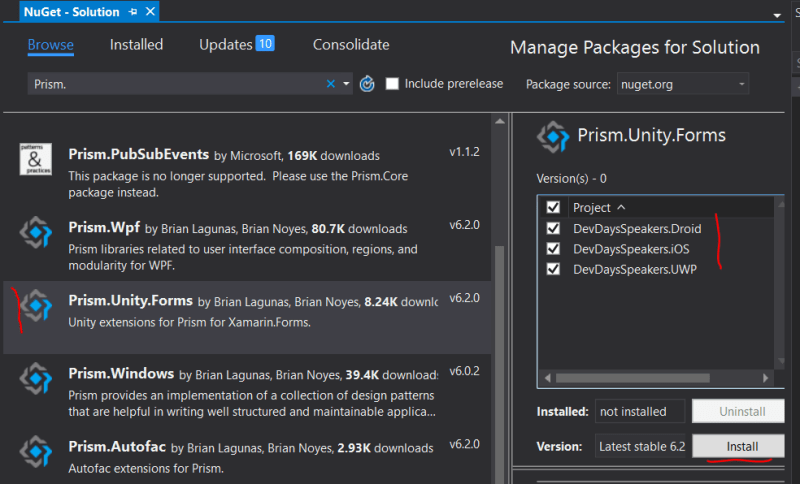
When using Prism, your first need to decide what kind of dependency injection you are going to use. I always seem to default to Unity: it was the first container that I had used and has always worked well for me. Out of the box, Prism comes with Unity, Ninject, AutoFac and DryLoc. Pick the one that you like and go with it, or, use something else if you want to put in a bit of extra effort. Let’s add Prism.Unity.Forms as shown below:

nuget

Add nuget package to projects in solution.

Adding Prism.Unity.Forms will add in the following items to your projects:

  • Prism.Unity.Forms
  • Prism.Unity
  • Prism
  • Microsoft.Practices.Unity
  • Microsoft.Practices.ServiceLocation

Now that we have Prism installed in the app, let’s setup our App object (located in the shared portion of the solution). If you were at one of the dev days, or have done any Xamarin Forms in the past, you know the app class is the main entry point. Each of the platform specific projects will jump into the app object to get at the cross-platform code.

The easiest thing to do is to just comment out the existing class and replace it with the following:


public class App : PrismApplication
{
    public App(IPlatformInitializer initializer = null)
        : base(initializer)
    {
    }

    protected override void OnInitialized()
    {
        NavigationService.NavigateAsync("SpeakersPage");
    }

    protected override void RegisterTypes()
    {
        Container.RegisterTypeForNavigation<View.SpeakersPage>();
    }

    protected override void OnSleep()
    {
        base.OnSleep();
    }

    protected override void OnResume()
    {
        base.OnResume();
    }
}

So what do we have up there? Use the OnInitialized to handle tasks once the App is up and running. At the very least, we are going to navigate to the first page here. The other important piece is the RegisterTypes function. In here we will register our services and also our pages for navigation. For now, all we are going to do is register the SpeakersPage.
If you run the app now, you should find that it starts up and displays the main page. If you click on the button, that should still function as well. At this point, it will crash if we try to navigate to the details page of one of the listed speakers.

We have a pretty good start here and it is time to wrap up. I have decided to talk about the MVVM support Prism provides first instead of fixing the navigation crash. One of the nice things about Prism is that it abstracts navigation away from knowing page types and moves navigation into the view model. So we will get our view model setup first.

Stay tuned for step 02!